File Folder Hierarchy: How to Build an Easy-to-Navigate Folder Structure
A folder hierarchy organizes files, such as images, videos, and other digital assets, into logical parent folders and subfolders so they are easy to find. A good folder structure is based on user needs, clear names, and shared practices.
Today, intelligent metadata plays a major role in efficient digital asset management. Increasingly, users find assets by describing what they need rather than browsing folders. However, folders still have an important place in asset organization, especially when sharing files with a partner network.
This article explains how to build an easy-to-navigate folder hierarchy and when metadata-based digital asset management makes file organization easier. We also show how ImageBank X DAM Smart Folders automatically bring together assets for different user groups.
What does organizing a folder hierarchy mean?
Let’s start with the basics. Organizing a folder hierarchy means planning how folders and subfolders relate to one another. The goal is a directory structure that users can navigate without needing separate instructions for finding each file. Folder hierarchies are a traditional way to organize an organization’s assets.
For example, marketing teams might use these top-level folders:
- Brand assets
- Product images
- Campaigns
- Employee photos
- Events
- Archive
Subfolders are created when they make assets easier to find. Campaigns can be organized by campaign name and product images by product family. A good folder structure answers two questions: Where can I find the asset I need, and where should I save a new file?
How do folder structure, taxonomy, and metadata differ?
Folder structure, taxonomy, and metadata are different parts of file management. Understanding their roles helps you create an organizational system that continues to work as your asset library grows.
| Concept | What does it mean? | Example |
|---|---|---|
| Folder structure | The arrangement of folders and subfolders. | Product images → Outerwear → Jackets |
| Taxonomy | A shared classification system with agreed terminology. | Product categories: jackets, pants, footwear |
| Metadata | Information that describes an individual asset. | Product number: 12345, season: Spring 2027, view: front |
| Smart Folder, or dynamic folder | An automatically updated asset view based on saved search criteria. | All images with the season set to Spring 2027 |
How to build an easy-to-navigate folder hierarchy
1. Start with how people search for assets
Find out how marketing, sales, and partners look for files. Marketing may search for images by campaign. A salesperson needs images of a specific product. A dealer wants materials for the upcoming season. Document the most common search scenarios before creating folders. This helps the structure serve users even when they are unfamiliar with the person who originally saved the assets or the process used to create them.
2. Choose a consistent way to group files
Next, decide how folders will be grouped at each level. For example, always organize campaign folders by campaign name and product images by product family. If folders named “Summer Campaign,” “JPG Images,” “Sales,” and “New” appear at the same level, users have to guess which grouping principle determines a file’s location.
3. Keep the folder hierarchy as shallow as possible
Create a subfolder only when it helps users narrow down the assets. Every additional level introduces another decision on the way to a file. If the path runs from marketing to a year folder, region, team, project, and finally an images folder, check whether every level is necessary. A few clear levels are a practical starting point. Find the right depth by testing whether users can locate common assets without help.
4. Give folders and files clear names
Use names that remain meaningful over time. “Spring Campaign 2027” says more than “New Campaign,” and “Approved Product Images” is clearer than “New Final Files.” Agree on a consistent file naming convention. Decide which information belongs in the filename and which should be maintained in metadata.
5. Agree on maintenance and archiving practices
An easy-to-navigate folder structure needs shared rules:
- Who can create new top-level folders?
- Who is responsible for consistent naming?
- How are drafts and approved assets distinguished?
- When should old materials be archived?
- Which assets can external partners use?
Finally, test the structure with someone who was not involved in designing it. Ask them to find the latest logo, an image of a specific product, and materials from the most recent event.
When does a traditional folder structure start limiting file management?
A traditional folder structure works well when assets have a clear storage location and users follow the same logic to find them. Challenges arise when the same file belongs in several contexts. A product image may be relevant to the spring collection, outerwear, the online store, and dealer materials at the same time. If the image is copied into four folders, someone needs to remember to update it in four places. If it is stored in just one folder, everyone needs to know where it is. Fortunately, there is a way to simplify this. A centralized digital asset library, such as ImageBank X DAM, lets you organize assets into multiple folders automatically. Next, let’s look at how you can automate which assets appear in each folder.
How do ImageBank X Smart Folders simplify image organization?
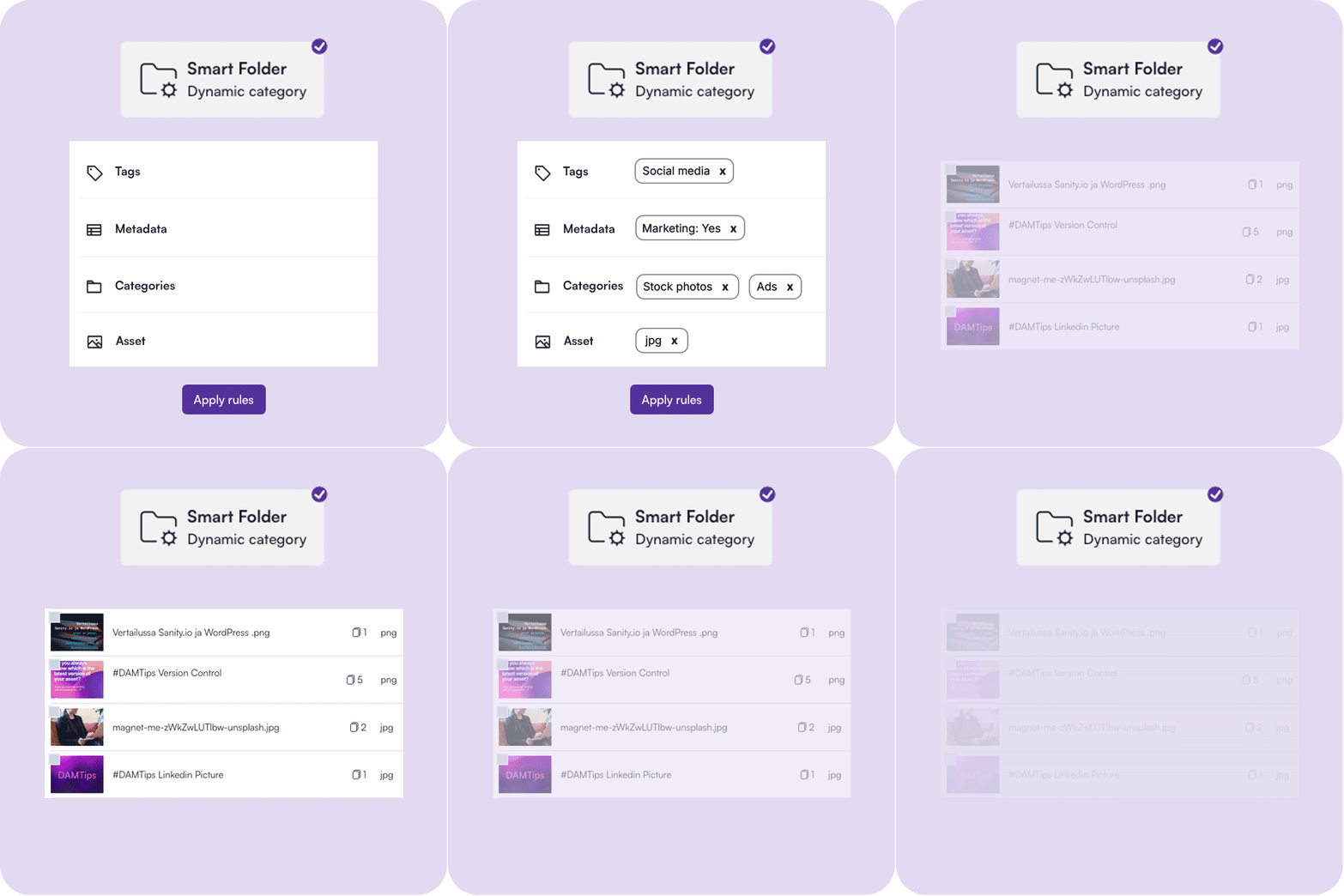
Automatically updated folders save time by organizing assets for you
ImageBank X Smart Folders are automatically updated folders whose contents are based on defined search criteria. These criteria can include metadata, keywords, file type, or date. When an asset matches the criteria, it appears in the view. When it no longer matches, it disappears from that view. A dynamic folder is essentially a saved search. You do not need to rebuild its contents after every update. Here are a few examples of how automatically updated folders can be used.
Example: employee photos automatically appear in one view
For employee photos, you can create a metadata field called Asset type and select Employee as its value. The Smart Folder is configured to use the same value as its search criterion. When new employee photos are uploaded to ImageBank X and assigned the agreed metadata, they automatically appear in the employee photos view. Marketing no longer needs to add every photo to the folder individually. Users find employee photos in a familiar place while the view updates in the background based on metadata.
Example: season data from PIM brings product images together for sales and partners
Product season data can be transferred from a PIM system into an ImageBank X metadata field through a configured integration. With ImageBank X PIM integrations, the data flow and update method are defined according to your company’s needs.
For example, spring collection assets can be organized as follows:
- A product has its season set to Spring 2027 in the PIM system.
- The integration transfers this season information into the metadata of the assets associated with the product in the DAM.
- A Smart Folder called Spring 2027 is configured in ImageBank X.
- The folder displays assets whose season metadata matches the defined criterion.
- The view updates once new or changed information has been synchronized to the DAM.
Sales teams and partners can access the seasonal assets intended for them according to their assigned permissions. Marketing does not need to rebuild the same image package every time a new product or image is added. The new season’s folder and its rules are configured first. After that, the folder’s contents update automatically.
How do you make sure dynamic folders display the right assets?
Automated folder organization requires consistent metadata. If the same season is entered as “Spring 2027,” “SS27,” and “Spring,” a search criterion based on one value will not find all the intended assets.
Agree on the following:
- Consistent values: Use predefined options for fields such as season and asset type.
- Source of information: Define whether season information is maintained in PIM and approval status in DAM.
- Product matching: Make sure the correct product identifier connects each image to the right product.
- Publication readiness: Include approval status in the search criteria if the view should contain only approved assets.
- Access permissions: Define separately what internal users and partners are allowed to see.
A dynamic folder’s search criteria determine how assets are grouped. Access permissions determine who can use them.
Less time gathering assets, more time using them
Which assets does your team gather into the same folders week after week? Let’s explore how ImageBank X could automate that work.
Frequently asked questions about folder hierarchy organization
What makes a good folder structure?
A good folder structure is consistent, clearly named, and based on how users search for assets. Users know where to find an asset and where to save a new file.
How many levels should a folder hierarchy have?
There is no single correct number. Use as few levels as you need to group assets clearly. If users constantly need instructions to find files, review the structure.
What is the difference between a regular folder and a Smart Folder?
Files are placed into a regular folder individually. A Smart Folder displays assets that match defined search criteria and updates automatically as asset information changes.
Can the same image appear in several dynamic folders?
Yes. The same image can match search criteria for both a product family and a season, for example. You do not need to copy the asset for each view.
Can PIM data be used to organize images?
Yes, when the required data transfer has been implemented between PIM and DAM. For example, product category, product number, and season can be transferred into asset metadata and used in searches and dynamic folders.